
How To Get Airdrop On A Mac

So, you’ve finally joined the Mac club. Congratulations! You’ve traded your old laptop, which wheezed like a pensioner chasing a bus, for something sleek and shiny. But now you’re staring at a mysterious icon in your Finder sidebar that says AirDrop. It sounds like a cool secret spy mission, but really, it’s just Apple’s way of making you feel like a wizard.
The "Why is This So Hard?" Moment
Let’s be honest: the first time you try AirDrop, you’ll probably fail. It’s like the first time you tried to parallel park—awkward, embarrassing, and you end up blocking traffic. You’ll click the icon, nothing happens, and you’ll mutter, "Is this thing even real?"
But stick with me. Once you get it working, you’ll feel like a tech god. You’ll send photos to your friend’s iPhone faster than you can say, "Hey, remember that meme?" And they’ll look at you with awe, like you just performed a magic trick.
Must Read
The Secret Sauce: Wi-Fi and Bluetooth
Here’s the first rule of AirDrop: it’s a two-headed beast. You need both Wi-Fi and Bluetooth turned on. If your Wi-Fi is off, AirDrop sulks in the corner like a cat that didn’t get dinner. Same goes for Bluetooth—if it’s off, you’re basically shouting into a void.
Go to your menu bar and click the Wi-Fi and Bluetooth icons. Make sure they’re glowing blue and happy. If they’re gray, you’re in "no-fly zone" mode, and AirDrop will ignore you. Trust me, I once spent ten minutes troubleshooting only to realize my Wi-Fi was off. I felt like a detective who missed a giant neon sign.
The Finder Window Dance
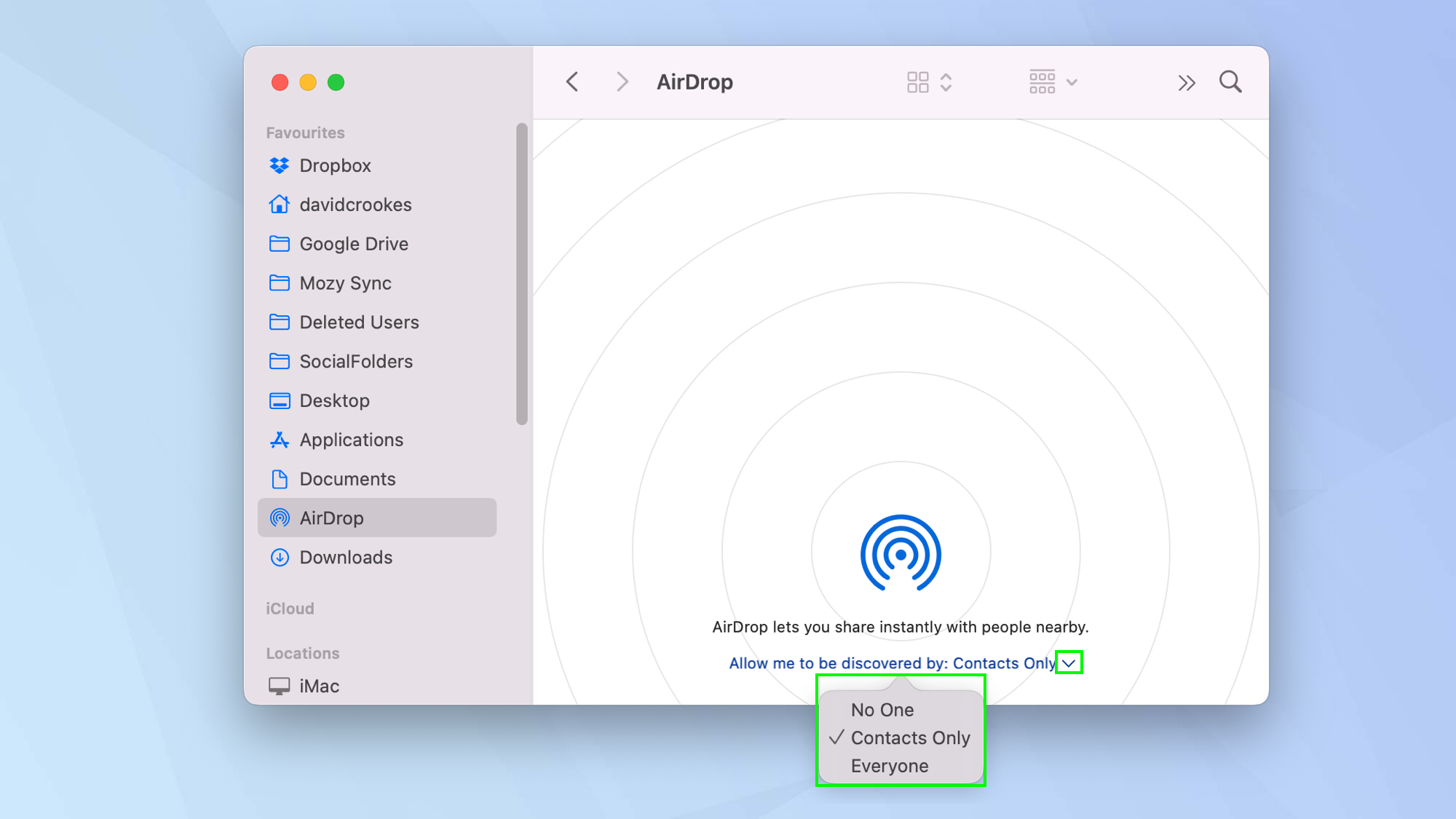
Now open a Finder window. Look on the left sidebar—you’ll see a bunch of folders like "Desktop" and "Downloads." AirDrop should be right there, third from the top, like the cool cousin at a family reunion. If you don’t see it, don’t panic—just go to the top menu, click Go, and select AirDrop from the dropdown.
A new window pops open, and it looks like an empty room with a lonely "Discoverable" button. This is where the magic—or the frustration—happens. You’ll see a little icon for your own Mac, and maybe a ghost icon for your friend’s device if they’re nearby. If you see nothing, take a deep breath and remember: you’re not crazy, AirDrop is just being picky.
The Discoverability Trap
Click that "Discoverable" dropdown. You have three choices: "No One," "Contacts Only," or "Everyone." If you’re trying to send something to your mom, "Contacts Only" will fail because her contact card is probably a mess. Choose "Everyone" for the first time—it’s like unlocking the front door instead of hiding the key under a fake rock.
I once set AirDrop to "Contacts Only" and spent an hour wondering why my friend’s phone didn’t show up. Turns out, I had them listed as "Crazy Neighbor" in my contacts, and Apple’s software is not a fan of nicknames. Moral of the story: keep it simple, go with Everyone.
The Actual Transfer: Sending a File
Found the file you want to send? Great. Drag it over the AirDrop window, hover it over your friend’s icon, and wait for the dramatic pause. A preview will appear on their device with an Accept or Decline button. If they hit Accept, the file flies through the air like a digital frisbee.
But here’s the thing: sometimes the file just sticks mid-air. You’ll see a spinning wheel, and your brain will scream, "It’s broken! The apocalypse is here!" Relax. Usually, it’s because their device is in sleep mode or their Wi-Fi signal is weak. Give it a few seconds, and if it fails, try again with a sigh and a cup of coffee.
The "Why is My File Huge?" Problem
AirDrop works best for photos, documents, and links. But if you try to send a 4K video of your cat doing nothing, prepare for a wait. It’s like trying to squeeze a beach ball through a straw—possible, but slow. Compress your files first, or accept that you’ll have time to rewatch that video while it transfers.

I once tried to AirDrop an entire movie file to a friend. It took so long that we both forgot what we were doing. By the time it finished, we’d ordered pizza, eaten it, and debated the meaning of life. Just use a USB drive for big stuff, okay?
When AirDrop Plays Hide and Seek
Sometimes, AirDrop just doesn’t want to play. You’ll see "No devices found," and you’ll feel like a lonely astronaut in space. Before you throw your Mac out the window, check these three things: make sure both devices are within 30 feet of each other, both have Bluetooth on, and neither is on a public Wi-Fi network (like at Starbucks).
Also, your Mac’s personal hotspot can confuse AirDrop. If you’re sharing your iPhone’s data, AirDrop gets jealous and stops working. Turn off the hotspot, and watch the devices magically appear, like long-lost friends at a party.
The Grand Finale: It Works!
When AirDrop finally works, it’s pure joy. You’ll hear that satisfying ding on your friend’s phone, and they’ll smile. You’ll feel like a tech genius, even though you only clicked three buttons. That’s the beauty of AirDrop—it makes you look smarter than you actually are.
So go ahead, embrace the struggle. Fail once, laugh at yourself, and try again. AirDrop is worth the hassle because it’s the closest thing to magic in our daily lives. And if all else fails, just plug in a cable. No one will judge you—much.